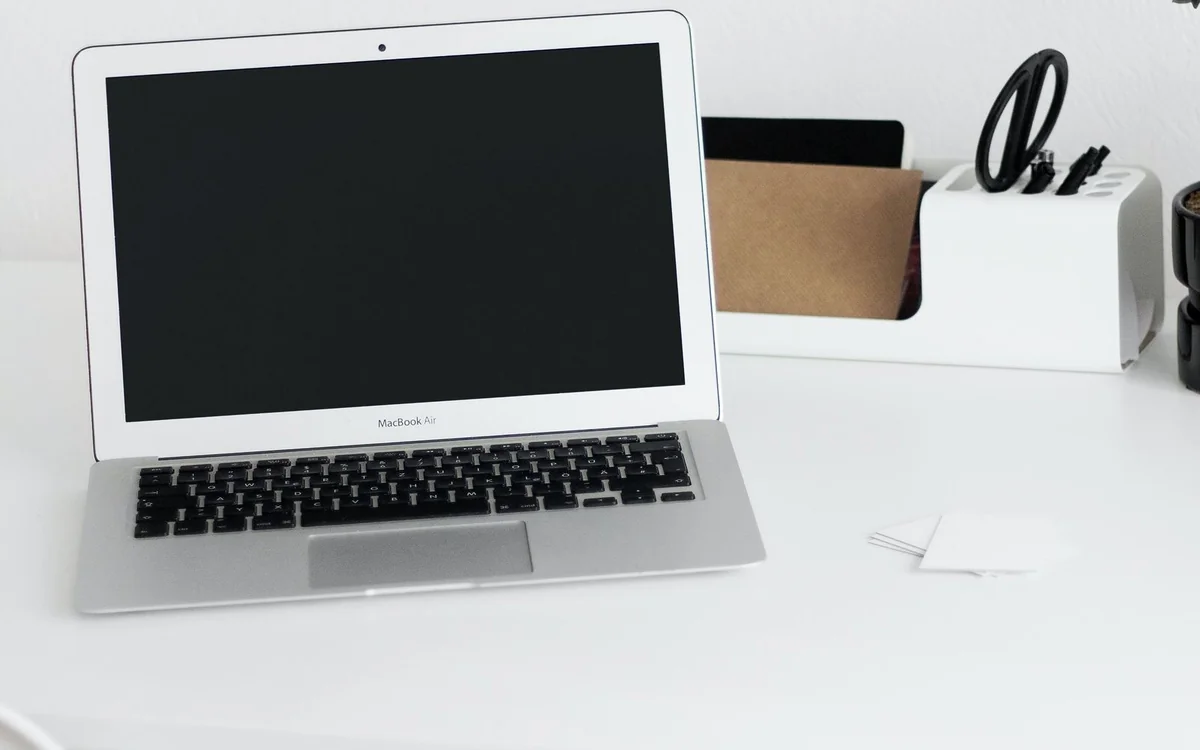
Choose a laptop when long typing sessions and specialised desktop workflows dominate. Choose a tablet for reading, pen input and casual portability when its applications cover your full routine.
Compare a complete day, not two bare devices
The question often begins with weight. A tablet looks easier to carry than a laptop, particularly when you are checking recipes, reading articles or travelling. But the useful comparison is between complete working setups. Add a keyboard, stand, charger and any adapters to the tablet, then compare that package with the laptop. Accessories can change the price, weight and number of pieces you need to manage.
This comparison evaluates purchase fit using general workflow considerations and official product information; it is not a speed test. There is no overall winner. A teacher annotating documents and a bookkeeper working with desktop software can reasonably choose different devices. Write down the five tasks you repeat most often and the one task you cannot afford to get wrong. The latter is usually the decisive one.
Long typing favours a stable platform
Imagine writing a report on a train. A laptop's attached keyboard gives you one object to position, whereas a tablet with a separate keyboard and stand may need more surface depth. Some tablet keyboard cases integrate those parts, but you should still examine how the setup works on your actual lap or tray. A product photo on a large desk cannot resolve that question.
If writing is occasional, the tablet's on-screen keyboard may be sufficient. For lengthy assignments, a physical keyboard is usually the more practical choice in our judgement. Try selecting text, moving between fields and using the shortcuts you rely on. Also consider whether you can charge while the keyboard is connected. The right accessory can close a gap, but it belongs in the initial purchase calculation.
Reading and annotation can favour touch
A tablet is a natural candidate for someone moving between a sofa, a kitchen counter and a meeting room. Rotating the screen, holding a document like a page and using a compatible pen can suit a reading-heavy routine. Those are workflow advantages, not evidence that every tablet display is more comfortable or that handwriting recognition will work perfectly for every user.
Before buying a pen, confirm support for the exact tablet generation and accessory model. Similar names do not establish compatibility. Check the application you intend to use, its export formats and whether your annotations remain accessible when shared with someone on another platform. A pleasant drawing experience is less useful if the document cannot enter your team's normal review process.
Application names can conceal different capabilities
An application available on both a laptop and a tablet may offer different features on each. Advanced spreadsheet tools, plugins, development environments and specialised file processing deserve particular attention. Use the developer's feature list and trial options where available. Do not assume that opening a file means you can complete every operation that file requires.
For browser-based services, run through a full workflow: sign in, attach a file, edit content, export the result and print if necessary. A login page loading successfully is only the first step. If a task is used once a month but essential, include it in the decision. A tablet that handles most daily activity can still be the wrong only computer when a critical monthly job remains awkward.
Files and connections deserve a rehearsal
Consider a routine that starts with a camera card and ends with an uploaded presentation. How will each device import, organise and back up those files? What happens when the wireless connection disappears? A simpler interface can be welcome, but it should not obscure where important files live. Confirm that your intended storage device and connection method work with the exact hardware and software.
The same applies to presentation screens, audio equipment and printers. Count the accessories needed and check whether they require external power. Laptop ports vary too, so a laptop is not automatically free of adapters. The meaningful difference is the entire chain of connections in your own routine. A device that fits that chain cleanly will usually be more satisfying than one chosen mainly for appearance.
Choose a primary device and a supporting one
If this is your only computer, favour the option that reliably completes the hardest required task. An existing laptop changes the calculation: a tablet can be an excellent companion for reading, travel and annotation without being responsible for every desktop workflow. Buying a supporting device is different from replacing the machine on which your income or studies depend.
For a tablet shortlist, Apple's iPad range lets you compare screen size, accessory support and configuration through official pages. For a laptop shortlist, examine a MacBook Air or a Windows notebook around your required applications. We do not recommend a particular generation here. Check current specifications, assemble the full accessory basket and test the weakest part of your workflow while the return window remains open.
At a glance: choose for your routine
| Your situation | What to prioritise | The tradeoff |
|---|---|---|
| Reports and extended typing on train trays | A stable keyboard setup that fits the actual working surface | A tablet keyboard and stand can add cost and need more surface depth. |
| Reading and annotating documents between rooms | Comfortable handheld use and verified pen-app compatibility | Annotation exports and shared review workflows still need checking. |
| Specialist desktop software or advanced spreadsheet tools | Full application features, plugins and file-processing support | A tablet app with the same name may not complete the desktop workflow. |
| Companion device alongside an existing computer | Choose the tablet around reading, travel or pen tasks it will actually handle | It adds another device to maintain rather than replacing every laptop responsibility. |
Options to consider
Compare the exact model, configuration and local warranty before ordering. Prices and availability can change; the links below open official product or brand information.
Apple iPad range
A starting point for reading, portable entertainment and compatible pen workflows.
Consider the tradeoff: Keyboard and pen compatibility vary by model; include accessory cost.
Explore at the official siteMacBook Air family
A laptop starting point when desktop applications and extended typing matter.
Consider the tradeoff: Verify macOS compatibility and the exact port arrangement.
Explore at the official siteYour questions answered
Can a tablet replace a laptop?
Yes, when its applications and accessories complete your full workflow. Test the most demanding required task before making it your only computer.
Should I buy the keyboard at the same time?
If you expect substantial typing, include a compatible keyboard in the price comparison from the start. Check how the combined device fits your normal working surface.
Sources & methodology
- Apple: iPad range and comparison
- Apple: MacBook Air M4 specifications
- Apple: iPad multitasking controls
Sources checked 7 October 2026. Recommendations are editorial judgments based on documented features, compatibility and everyday scenarios. Manufacturer performance figures are claims, not our measurements. Read our editorial policy.