Choose a USB-C monitor only after confirming video support and laptop charging requirements. Good stand adjustment and readable text should lead the shortlist.
What a cleaner desk should actually do
A laptop lands on the desk, one cable goes in, and the screen, keyboard and mouse are ready. That is the appeal of a USB-C monitor. The purchase becomes less satisfying when the cable charges the laptop but does not display an image, or when you still need a separate adapter for essential accessories. A clean desk begins with compatibility, not a promising connector photograph.
This guide is based on manufacturer documentation and practical setup analysis. We have not measured monitor image quality, colour accuracy or laptop charging performance. Dell's USB-C product information and manuals provide examples of the checks involved, rather than a universal recommendation for every computer. Treat the guide as a way to define your shortlist before checking the exact monitor and laptop together.
Check the laptop port before the monitor port
The USB-C connector describes a physical shape, not every function available through it. Find the laptop manual and identify whether the port supports an external display and the mode required by your prospective monitor. If the manual is unclear, ask the manufacturer using the full model number. Guessing from another laptop in the same family can lead to a costly mismatch.
Also note which port you intend to use. A laptop may have several similar-looking sockets with different roles. Write down the intended display resolution and refresh rate, then check whether the laptop, cable and monitor support that combination. You do not need to memorise every interface acronym; you do need a documented path from your computer to the image you want.
Charging power is a separate requirement
Look up the charging requirement for your computer and the power delivered to the laptop by the monitor's upstream USB-C connection. Do not confuse that with a smaller downstream socket intended to power an accessory. Dell's monitor documentation distinguishes port roles, showing why a line that says USB-C is insufficient. Compare the relevant host-charging figure, not the first wattage on the page.
A lightly used laptop and a machine running demanding software can put different pressure on the setup. If the manufacturer's guidance calls for its own higher-power adapter, keep that in the plan rather than insisting on one cable at all costs. The real objective is a reliable desk. A second charging lead can be an acceptable compromise if the display otherwise fits your needs.
Measure the desk and choose readable space
Screen size is useful only in relation to viewing distance and available room. Measure the desk depth, leave space for a keyboard and check the stand's footprint. A larger display squeezed between a wall and your face may feel less convenient than a smaller adjustable one. Think about whether you want two documents side by side, a spreadsheet beside email, or a single focused work window.
Resolution and operating-system scaling work together. More pixels do not automatically make text comfortable at the default setting. Check the scaling options on your computer and, if possible, view a comparable screen in person. We do not claim a measured optimum here. Choose the arrangement that lets you read your daily applications without repeatedly leaning forward or changing window sizes.
The stand is part of the product
Height adjustment, tilt and the space under the screen can affect the whole desk more than an extra preset in the menu. Work out where the top of the screen will sit with your chair and laptop position. If you intend to use an arm, confirm mount compatibility and include the arm's cost. A monitor that needs an immediate support purchase may be less attractive than its sticker price.
Consider the laptop itself. Keeping it open adds a second screen but also takes room and may place its camera off to one side. Closing it creates a different video-call requirement. Decide which layout you prefer before choosing a stand, webcam or dock. Purchasing these objects separately without a desk plan can result in an expensive collection of awkward compromises.
Inventory the accessories that stay plugged in
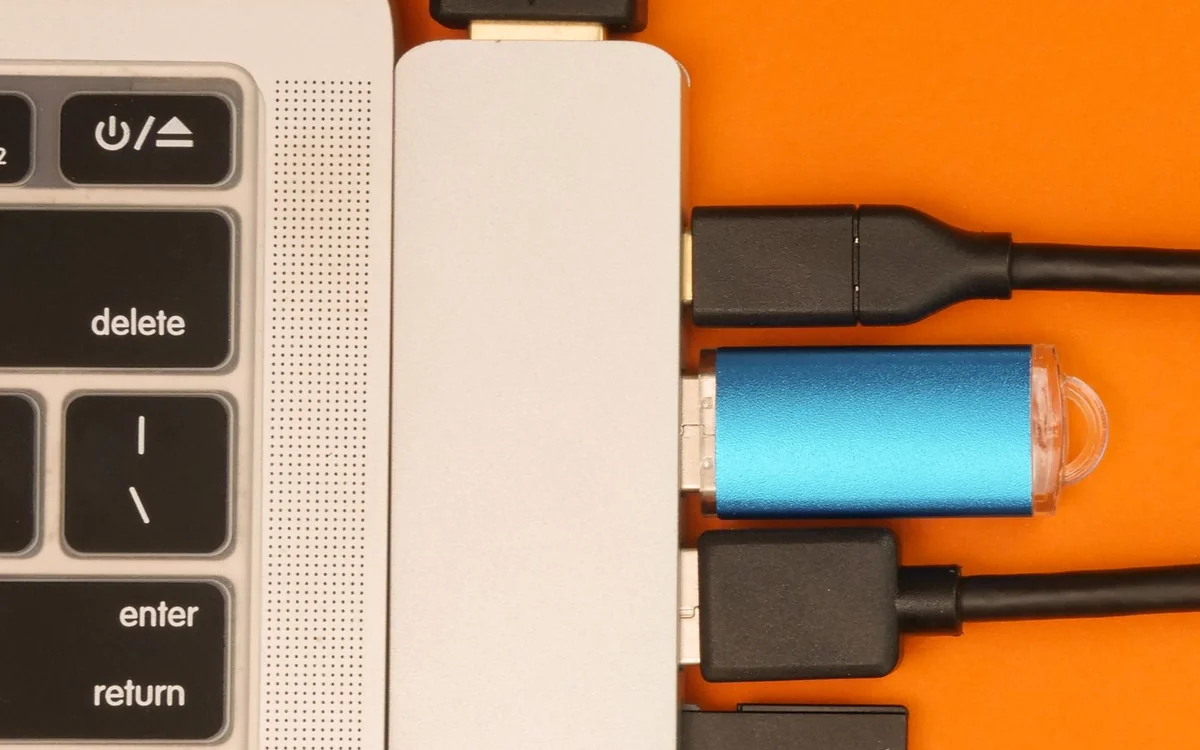
List the keyboard, mouse receiver, webcam, storage drive and any wired network connection you require. Count actual usable downstream ports and read whether video and data share limitations in the mode you plan to use. A monitor hub can be convenient, but it is not automatically a substitute for every feature of a separate dock.
Pay attention to port placement. A socket on the back may suit a permanent keyboard receiver while being annoying for a drive you connect every day. If you only need a keyboard and mouse, a modest hub may be enough. If you transfer large files or have multiple displays, investigate the exact connectivity arrangement before choosing a screen primarily for its integrated ports.
Do not pay for features outside the brief
An office-oriented setup does not necessarily need specialist gaming or colour-production features. Conversely, someone editing visual work should investigate colour documentation and workflow requirements rather than treating any convenient USB-C monitor as suitable. Match each premium feature to something you actually do. If no task benefits, that part of the price is optional.
Dell's S2725DC is one official product example to investigate for a laptop desk, but the final purchase should depend on your computer, workspace and local listing. Check the full specifications and current seller terms. Product names can be similar across revisions, and a different suffix may indicate a different connection arrangement. Save the exact model information before comparing offers.
Set it up during the return window
Connect the intended laptop with a cable documented for the required functions. Confirm the selected video input, check charging status, then add accessories one at a time. Try wake from sleep and a normal video meeting. This sequence helps separate a display issue from an accessory or cable problem without changing everything together.
If the setup works but the text or position feels wrong, adjust scaling and the stand before deciding to replace the screen. If a documented compatibility problem remains, use the seller's return process promptly. Our recommendation is to spend on a reliable, readable workspace first. A single cable is a welcome outcome, but it earns its place only when it supports the desk you actually need.
At a glance: choose for your routine
| Your situation | What to prioritise | The tradeoff |
|---|---|---|
| One-cable laptop arrival | Verify video support, host charging and cable capability | A USB-C socket alone does not establish the whole workflow. |
| Narrow home desk | Measure stand footprint and choose readable scaling | A larger panel can consume the space needed for ordinary work. |
| Several accessories stay attached | Inventory usable downstream ports and their location | An integrated hub may not replace every function of a separate dock. |
| Visual production or gaming | Investigate the task's specific display requirements | Desk convenience is not proof of specialist image performance. |
Options to consider
Compare the exact model, configuration and local warranty before ordering. Prices and availability can change; the links below open official product or brand information.
Dell S2725DC
An official USB-C monitor example for readers building a laptop desk.
Consider the tradeoff: Verify your laptop's video mode, host charging requirement and the exact regional specification.
Explore at the official siteYour questions answered
Will every USB-C laptop work with a USB-C monitor?
No. Confirm external-video support, the required mode and cable capability using the exact laptop and monitor documentation.
Can a monitor replace a dock?
Sometimes. Compare its available downstream ports, charging and display arrangement with the accessories you actually need.
Sources & methodology
Sources checked 7 October 2026. Recommendations are editorial judgments based on documented features, compatibility and everyday scenarios. Manufacturer performance figures are claims, not our measurements. Read our editorial policy.