Improve lighting and camera height first. Buy an external webcam when placement, a closed-laptop desk or specific documented features still leave a clear need.
The ordinary meeting problem
You join a call from the dining table and see a dark face against a bright window. It is tempting to buy a higher-resolution webcam immediately. But the problem may be the window, the camera angle or the way the meeting app handles video. A separate camera can help a carefully arranged desk; it cannot guarantee a flattering or clear image in every environment.
This comparison is based on practical setup analysis and manufacturer feature documentation, not camera testing. Byte & Gear has not measured image sharpness, low-light performance or microphone quality. The aim is to separate problems you can solve for free from the situations where an external device has a clear role. Begin with the call you make every day rather than an ambitious specification list.
Move the light before replacing the camera
Try facing a source of soft light instead of placing a bright window behind you. Adjust curtains or a lamp so the face is visible without a harsh glare. Use the meeting application's preview and compare ordinary seated positions. This costs little and helps identify whether the camera itself is still the limiting factor.
Clean the lens gently according to the device's care guidance, and check that a privacy cover is fully open. Also inspect the app's camera selection if another device is connected. An overlooked setting can make an expensive external camera appear no different from the laptop camera. Change one thing at a time so you know which adjustment helped, rather than purchasing several accessories in response to one poor preview.
An external webcam earns its place through positioning
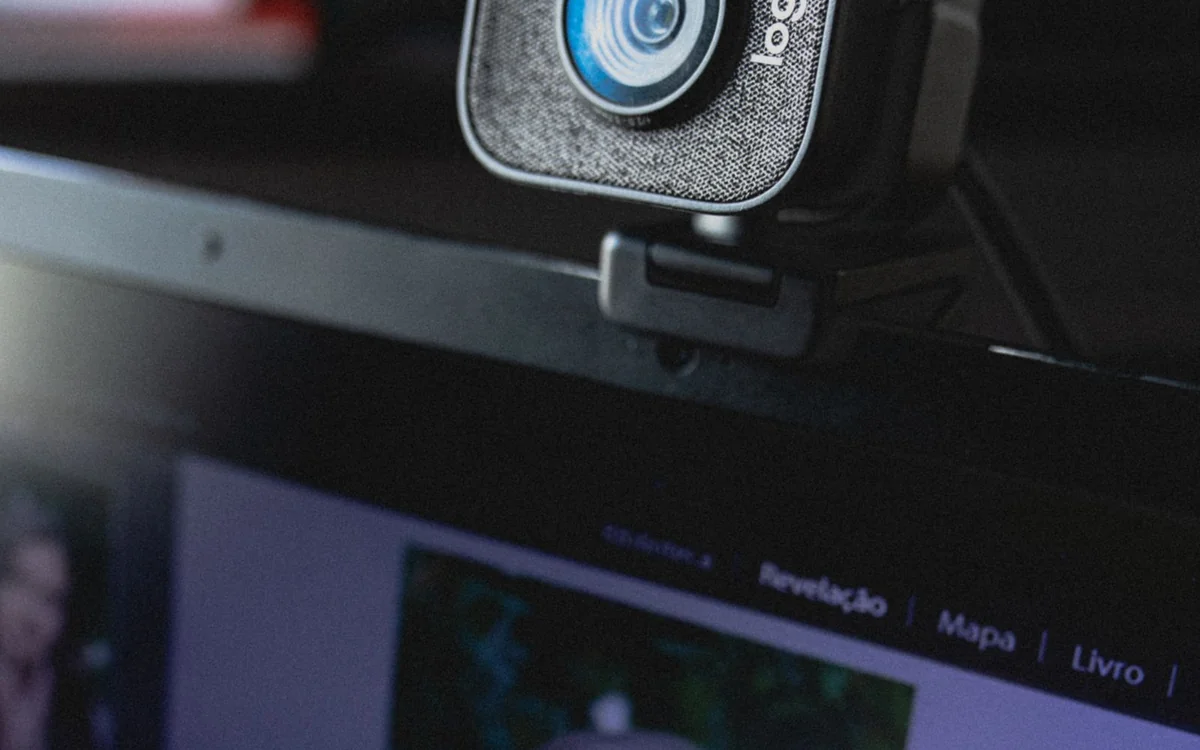
A laptop camera moves with the screen, which ties your framing to the screen angle and desk height. An external webcam can be positioned on a separate monitor, allowing the laptop to sit elsewhere or remain closed if the computer supports that desk arrangement. This placement flexibility is a concrete reason to consider one, especially when your main screen is already at a comfortable height.
Check the mounting method and monitor edge before buying. A webcam should sit securely without covering useful screen area or wobbling when you type. Think about cable routing as well: a tidy-looking photograph may hide a lead that is too short for your setup. If your existing laptop can simply sit on a suitable stand, that may solve the angle without requiring another camera.
Resolution is only one part of a video call
Logitech identifies the Brio 500 as a 1080p webcam with light-correction features. That is verified product information, not a claim that every call from it will be sharper than every laptop camera. Meeting software, network conditions and account or administrator settings can influence what the other participants receive. A resolution label is a capability, not a complete account of the experience.
If your main need is ordinary meetings, avoid spending purely on the largest number. Someone recording local video for editing has a different requirement from someone appearing in a small conference tile. Define whether you need remote calls, local capture, document presentation or several people in frame. Only then compare the relevant feature set and the software needed to use it.
Software features come with requirements
Logitech's Brio 500 page notes that its auto-framing feature requires Logi Tune, and that Logi Tune is not available for ChromeOS. This illustrates a broader shopping rule: read the footnotes beside the feature you are buying for. Operating-system support for basic video does not necessarily establish access to every advanced option.
On a managed work computer, check whether the employer allows the companion application. If not, identify what remains available without it. You may prefer a simpler setup that relies on ordinary camera controls. Do not pay for automatic framing merely because it looks convenient in a demonstration; ask whether you actually move during meetings and whether the feature can be enabled on your machine.
Sound is its own part of the decision
A webcam may include microphones, but buying a camera does not automatically solve meeting audio. Distance, room sound and competing devices remain relevant. If people complain about understanding your speech, investigate the selected microphone and where it sits before focusing on image quality. A headset can be a more direct solution when the room is busy.
Test the entire call arrangement with your normal application. Check which microphone is active after connecting the camera, and confirm that a mute action does what you expect. Avoid assuming the software will keep using the same input after a restart or a new accessory appears. A stable combination you understand is often preferable to a more elaborate desk full of devices with ambiguous routing.
Privacy and packing matter too
Consider how you cover or disconnect the camera when it is not needed. Read the product's documented privacy arrangement, and do not mistake a microphone setting for a camera setting. Position the camera so the background shows only what you are comfortable sharing. This is especially useful when a home desk is part of a family room.
For someone who works from different places, the built-in camera remains convenient because it is already attached. An external webcam adds a lead and another object to pack. The same model can be sensible on a permanent monitor and inconvenient at a cafe. If travel is frequent, reserve a separate camera for the home desk unless your mobile work has a specific requirement the laptop cannot meet.
Make the upgrade case specific
Keep the laptop camera if better lighting and positioning resolve your regular meetings. Investigate an external webcam if you need a closed-laptop desk, more flexible framing or a documented feature unavailable on the built-in camera. The Logitech Brio 500 is one example to research, with its published software requirements checked carefully. We do not present it as an independently measured category winner.
Before checkout, verify the connector, mount, cable length, operating-system support and access to companion software. Compare the current complete cost and seller return rules. During the first week, try a normal meeting, a restart and the privacy routine. The useful upgrade is one that reliably fixes your identified problem, not one that simply adds another impressive specification to the desk.
At a glance: choose for your routine
| Your situation | What to prioritise | The tradeoff |
|---|---|---|
| Dark face against a window | Improve lighting and check the existing camera first | New hardware may leave the underlying room problem unchanged. |
| Closed-laptop monitor desk | Secure camera placement, connector and cable routing | An external camera adds another cable and device. |
| Moving while presenting | Verify documented framing features and software access | Basic video support does not guarantee advanced feature availability. |
| Frequent mobile work | Compare the built-in camera's convenience with the actual unmet need | A separate webcam adds packing and setup to each location. |
Options to consider
Compare the exact model, configuration and local warranty before ordering. Prices and availability can change; the links below open official product or brand information.
Logitech Brio 500
Investigate for a monitor-mounted desk and documented framing features.
Consider the tradeoff: Auto-framing requires Logi Tune, whose platform availability and workplace permission need checking.
Explore at the official siteYour questions answered
Do I need a 4K webcam for meetings?
Not automatically. Define the recording or call requirement, then check the app, network and administrative settings that affect output.
Will a webcam fix poor meeting audio?
Not necessarily. Check microphone selection, distance and the room, and compare a headset when intelligibility is the main problem.
Sources & methodology
Sources checked 7 October 2026. Recommendations are editorial judgments based on documented features, compatibility and everyday scenarios. Manufacturer performance figures are claims, not our measurements. Read our editorial policy.